
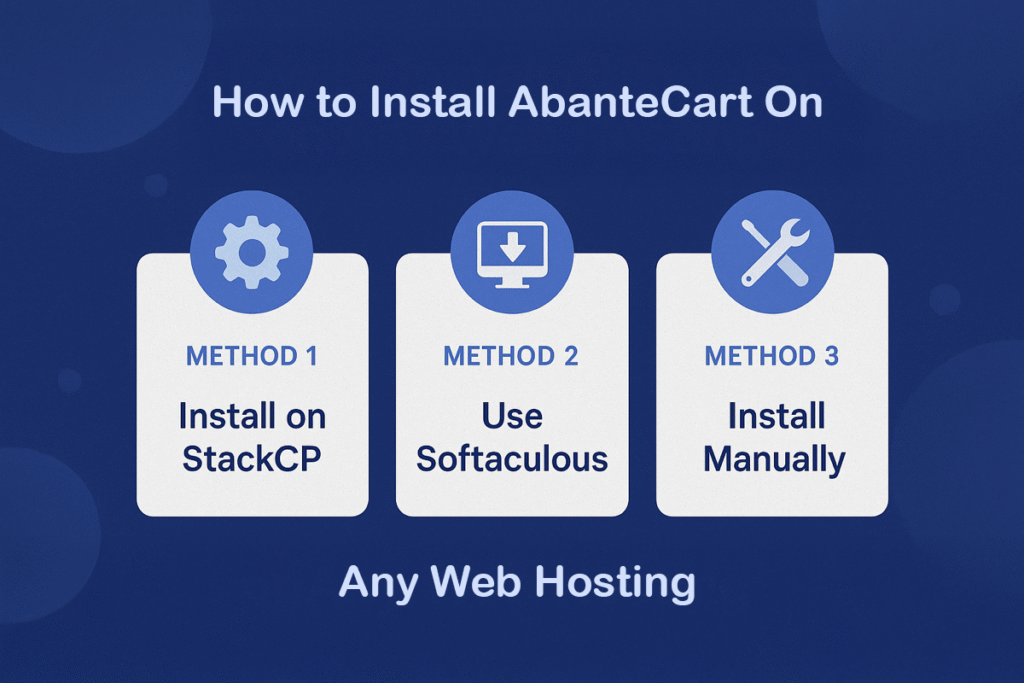
Looking to launch your online store with AbanteCart? You’ve made a smart choice. AbanteCart is a free, open-source eCommerce platform that’s lightweight, powerful, and flexible. Best of all, it’s easy to install on virtually any hosting environment—including StackCP Linux Web Hosting.
In this guide, you’ll learn how to install AbanteCart using three methods: via StackCP, through Softaculous, or manually.
🧾 What You’ll Need Before You Start
- A Linux-based web hosting plan
- PHP 7.3+ and MySQL 5.6+
- A registered domain name
- Access to cPanel or your hosting control panel
For optimal performance, we recommend StackCP Linux Hosting, which includes SSD storage, free SSL, daily backups, and fast support—everything an online store needs to thrive.
🚀 Method 1: Installing AbanteCart on StackCP Linux Web Hosting
One of the easiest ways to install AbanteCart is through the StackCP control panel. It’s fast, beginner-friendly, and requires no technical expertise.
Here’s how to get started:
- Log in to your StackCP Hosting Control Panel.
- Navigate to the “Web Applications” section.
- Search for AbanteCart using the search bar.
- Click the “Install” button next to AbanteCart.
- Select the domain or subdomain where you’d like to install the software.
- Customize your admin login details and email address.
- Finally, click “Install Now” to complete the process.
Within seconds, your store will be live and secured with a free SSL certificate—automatically applied by StackCP.
⚙️ Method 2: Installing AbanteCart Using Softaculous
If your hosting provider offers Softaculous (typically in cPanel), you can install AbanteCart with just a few clicks.
Steps to install via Softaculous:
- Log into your hosting control panel and open “Softaculous Apps Installer.”
- Find and select “AbanteCart” from the list of available applications.
- Click “Install Now.”
- Choose your domain, set your admin credentials, and configure store settings.
- Hit “Install” and wait for the confirmation message.
As soon as the installation is complete, you can access your admin dashboard and start adding products.
🛠️ Method 3: Manual Installation of AbanteCart
For those who prefer full control, manual installation is a great alternative. It involves uploading files and setting up the database manually.
Step-by-step guide:
Step 1: Download AbanteCart
Visit the official website at abantecart.com and download the latest version of the platform.
Step 2: Upload to Your Server
- Use FTP (like FileZilla) or File Manager in cPanel to upload the files to your domain’s directory (e.g.,
/public_html).
Step 3: Create a MySQL Database
- Go to “MySQL Databases” in your control panel.
- Create a new database and assign a user with full privileges.
Step 4: Run the Web Installer
- In your browser, visit your domain to launch the installation wizard.
- Fill in the required database and store information.
- Click “Continue” and complete the installation.
🛡️ After Installation: What’s Next?
Once your AbanteCart store is live, you should take a few steps to get it production-ready:
- Set up HTTPS (included free with StackCP Hosting)
- Choose and configure a professional theme
- Add payment and shipping options
- Install useful extensions for marketing, SEO, or analytics
✅ Final Thoughts
Installing AbanteCart is a simple process whether you’re using StackCP, Softaculous, or manual methods. Each option has its benefits, but for speed, security, and ease of use, StackCP Linux Hosting stands out.
Don’t waste time troubleshooting or configuring servers manually. Instead, launch your store with confidence on a platform optimized for performance.