
6 Ways to Make Your Site More Accessible Right Now
A simple guide to web accessibility that helps every visitor including those with visual, motor, or cognitive disabilities. These six practical steps improve usability, boost SEO, and ensure your site works for all users without sacrificing design quality or performance.
Reading time: approximately 8 minutes.
Web accessibility is not a luxury add-on or a tick-box exercise for compliance departments. It is a fundamental requirement of good web design that benefits every single visitor to your site. According to the World Health Organization, an estimated 1.3 billion people worldwide roughly one in six individuals experience a significant disability. When you build an accessible website, you are removing barriers for over a billion potential customers, users, and readers.
The good news is that making your site more accessible does not require a complete rebuild. Some of the most impactful changes involve simple tweaks to your existing code, colour choices, text sizing, and navigation structure. Furthermore, accessibility improvements often have a positive knock-on effect for SEO, usability, and page performance because sites built with clear structure, strong contrast, and semantic HTML are inherently easier for search engines and human visitors to navigate.
This guide covers six practical, actionable steps you can implement today regardless of your technical skill level. Each tip is grounded in the WCAG 2.2 guidelines from the W3C Web Accessibility Initiative (WAI) which set the international standard for web accessibility compliance referenced by W3C WAI, 2024. Let us get started.
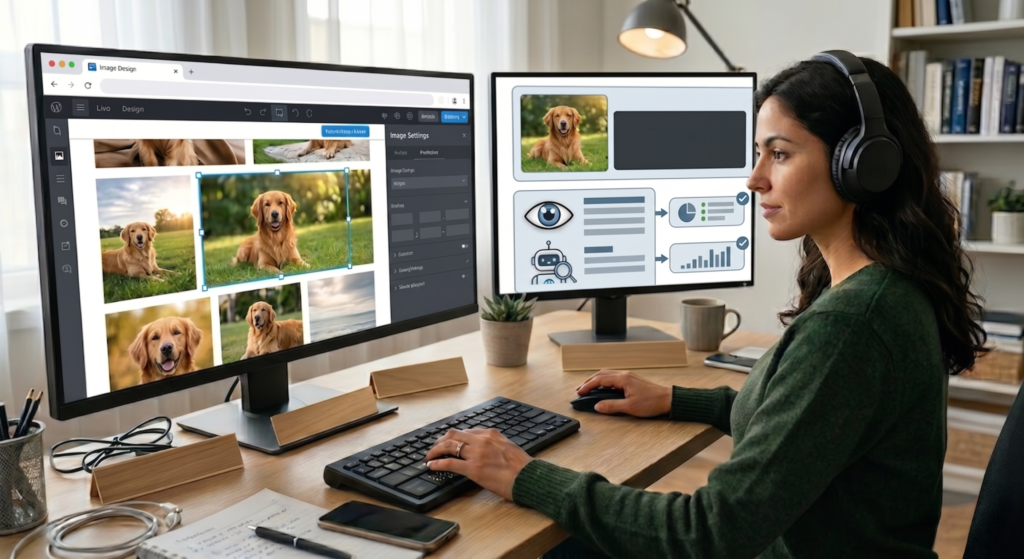
1. Write Meaningful Alt Text for Every Image
Alternative text or alt text is a descriptive string that tells screen readers what an image shows on the page. But it does not just help visually impaired users; search engines also use alt text to understand and index images, which directly supports your SEO performance.
How to write effective alt text:
- Informative images (diagrams, product photos, charts): Write a clear, concise description that captures the essential visual information. Instead of
alt="chart", writealt="Chart showing 40 percent increase in mobile traffic over the past year". - Functional images (icons, buttons, links): Describe the action or purpose, not the visual. A magnifying-glass icon in a search button should read
alt="Search this site". A shopping-cart icon should readalt="View your shopping cart". - Decorative images (banners, separators, background graphics): Use an empty alt attribute with
alt=""to tell screen readers to skip the image entirely. Never omit the alt attribute completely; a raw filename is deeply confusing for screen reader users.
According to accessibility standards reviewed by WebAIM, proper alt text implementation is one of the single highest-impact changes an accessible website can make see WebAIM Techniques for more guidance. When alt text is done correctly, it serves a dual purpose: helping assistive technology users AND improving how search engines interpret visual content on your pages.
2. Ensure Sufficient Colour Contrast
Colour contrast refers to the difference in brightness between text and its background. The WCAG 2.2 Level AA standard requires a minimum contrast ratio of 4.5:1 for normal text and 3:1 for large text (defined as 18pt regular or 14pt bold). This ensures readability for users with low vision, colour blindness, or those viewing screens in bright lighting conditions.
A common mistake: Relying solely on colour to convey meaning. For example, marking an error state by turning only the border red is insufficient because a colour-blind user cannot perceive the difference between red and green borders. Always pair colour changes with shapes, icons, or text labels as outlined in W3C WAI Designing Tips.
Practical check: Use tools like the WebAIM Contrast Checker or browser developer tools to verify the contrast ratio of every text-background combination on your site. If you use a light grey for secondary text, ask yourself whether that same grey would be readable in direct sunlight on a mobile device. That simple test reveals whether your contrast meets WCAG requirements in real-world conditions.
CP Cloud Hosting bridge: Ensuring strong colour contrast is especially important when you are running a site built with WordPress or similar CMS platforms where theme defaults may not meet accessibility standards. Our Managed WordPress Hosting plans include pre-configured, accessible themes that meet WCAG compliance out of the box saving you time and reducing compliance risk explore our hosting features.
3. Use Semantic HTML Properly
Semantic HTML means using HTML elements for their intended purpose: headings (<h1>, <h2>), paragraphs (<p>), navigation links (<nav>), article blocks (<article>), and so on. Native HTML elements carry built-in accessibility features such as automatic keyboard focus, browser semantic mapping, and screen reader announcements that custom div-and-class combinations can never replicate.
Key structural best practices:
- One H1 per page: This should be your main heading and include your primary keyword. Avoid using multiple H1 tags on a single page as this confuses both screen reader users and search engine crawlers.
- Maintain heading hierarchy: Never skip levels such as jumping from
<h2>directly to<h5>. Screen readers rely on logical heading structure to help users navigate long pages efficiently. - Use landmark regions: The elements
<header>,<nav>,<main>, and<footer>provide screen reader users with skip links to jump directly to content areas. - Avoid styling divs as buttons or links: Native
<button>and<a>elements are inherently keyboard-navigable. Generic divs styled to look like buttons require additional ARIA attributes to achieve the same accessibility level.
For deeper guidance on semantic structure, refer to MDN Learn Accessibility which offers comprehensive documentation on proper HTML use in modern web development accessibility resources from MDN.
4. Make Your Site Fully Keyboard-Navigable
Keyboard navigation is essential for users with motor disabilities, RSI (repetitive strain injury), or those who simply prefer the speed of a keyboard over a mouse. Every interactive element including links, buttons, form fields, and dropdown menus must be reachable and operable using only standard keys such as Tab, Shift+Tab, Enter, Spacebar, and Arrow keys.
Key requirements:
- Logical tab order: The focus sequence should follow the visual reading order from top to bottom, left to right. Avoid setting positive tabindex values that reorder focus in unnatural ways.
- Visible focus indicators: Every interactive element must show a clear, visible outline when it receives keyboard focus. Removing default focus outlines without replacing them with visible alternatives is one of the most common accessibility violations on the web today.
- Skip navigation links: Include a “Skip to Content” link as the very first focusable element on every page. This allows keyboard users to bypass repetitive navigation menus and access main content immediately.
- All elements must be operable via keyboard: Custom dropdowns, modals, accordions, and sliders need custom event handlers wired to keyboard input for full functionality.
If your site currently requires a mouse for all interactions, this is often one of the most impactful improvements you can implement because it opens your content to blind users relying on keyboard-based screen readers and motor-impaired visitors alike. Consider also providing visible focus indicators that contrast against your background colours.
5. Design Accessible Forms With Clear Labels
Forms are one of the most frustrating areas of web accessibility when implemented poorly. Placeholder text used as labels, missing field descriptions, vague error messages, and small tap targets all create barriers for users with visual or cognitive disabilities.
Practical checklist:
- Always use visible label elements: Every input field must have a corresponding
<label>element. Placeholder text alone is insufficient because it disappears when the user starts typing, leaving no indication of what information is required. - Group related fields logically: Use
<fieldset>and<legend>elements to group form controls that belong together such as billing address, shipping options, or payment details. Screen readers read the legend text before each field in a group. - Show errors clearly: When form validation fails, display error messages next to the relevant fields and provide a summary at the top of the form. Do not rely solely on red-bordered fields; use icons, text labels, and aria-describedby attributes for additional context.
- Use descriptive button text: Replace generic labels like “Submit” or “Click Here” with specific descriptions such as “Sign up for our newsletter” or “Get your free quote”.
Hosting relevance: If you are running a business site built on WordPress or similar CMS platforms, form accessibility matters directly for your lead generation. Our Shared Web Hosting plans include cPanel access and one-click installs for popular form plugins, making it straightforward to implement accessible contact forms that convert visitors into customers without requiring developer-level setup view our shared hosting options.
6. Provide Captions and Transcripts for Media Content
Audio-visual content including video tutorials, podcast episodes, product demos, and live webinars must include text-based alternatives to ensure accessibility for deaf, hard-of-hearing, or cognitively impaired users.
Suggested implementation steps:
- Closed captions for all video content: Provide synchronized captions that match spoken dialogue and describe relevant background sounds. Most modern hosting platforms support embedded HTML5 video players with built-in caption tracks.
- Full transcripts for audio-only media like podcasts and voice notes: Link a text transcript directly below the media player. A transcript serves as both an accessibility requirement and a valuable SEO asset because search engines crawl the transcript text to understand and index content.
- Multi-modal alerts: Any sound-based confirmation such as a ding notification should be paired with a visual change like an alert box or icon indicator so deaf users receive equivalent information.
Adding captions and transcripts not only improves accessibility; it also increases content discoverability for search engines, which can crawl transcript text but cannot index the audio track of a video file. For further guidance on accessible media implementation, refer to MDN Learn Accessibility documentation which covers best practices for multimedia alternatives see MDN Learn.
Key Summary: Quick Checklist
- Alt text: Write meaningful descriptions for informative images; use empty alt attributes for decorative ones.
- Contrast: Ensure 4.5:1 minimum for normal text; 3:1 for large text and UI elements.
- Semantic HTML: Use proper heading hierarchy, landmark regions, and native button and anchor elements.
- Keyboard navigation: All interactive elements must be reachable via Tab; visible focus indicators required.
- Forms: Visible labels, clear error messages, descriptive button text, logical grouping.
- Media alternatives: Captions for video; transcripts for audio; visual alternatives for sound alerts.
Why Accessibility Matters More Than Ever in 2026
The legal and ethical landscape around digital accessibility is shifting rapidly. In Europe, the European Accessibility Act (EAA) requires digital compliance across public and private sectors. In the United States, Section 508 of the Rehabilitation Act and ADA litigation targeting inaccessible websites has grown every year since 2017 per W3C WCAG standard documentation.
But even beyond legal compliance, accessible websites are simply better-performing sites. They load faster because they rely on clean HTML rather than heavy JavaScript overlays. They convert better because they reduce friction for all users. They rank higher in search results because semantic markup is exactly what crawlers look for. And they reach a significantly wider audience including the over one billion people worldwide with some form of disability.
Need accessible hosting? Our CP Cloud Hosting Managed WordPress platform includes built-in accessibility support: server-side caching ensures fast page loads, free SSL certificates secure data transmission, and 24/7 expert support is available if you encounter any technical barriers while improving your site compliance. Check out our WordPress hosting plans to get started.
Frequently Asked Questions
What is the fastest way to make my website more accessible?
The quickest improvements are adding alt text to images, ensuring sufficient colour contrast with at least 4.5:1 for body text, and making all links keyboard-navigable with visible focus indicators. These three changes typically take less than a day to implement on an existing site while providing the largest immediate accessibility improvement.
Is web accessibility only important for large businesses?
No. Accessibility matters equally if not more for small business websites, personal blogs, and portfolios. Every individual with a disability relies on accessible web content to access services, products, or information online. A small business website that excludes users with visual or motor impairments effectively loses that segment of potential customers entirely.
Do I need an accessibility statement on my website?
An accessibility statement is not legally mandatory in every jurisdiction, but it is a recognised best practice. It should describe your organisations commitment to accessibility, list any known barriers or limitations, and provide contact information for users who encounter difficulties accessing content. Including one demonstrates proactive compliance and reduces potential legal liability.
Can an automated tool check my sites accessibility?
Automated tools such as WAVE, axe DevTools, or Lighthouse accessibility audit can identify roughly 30 to 40 percent of accessibility issues primarily those related to code-level problems like missing alt text, heading structure, and colour contrast. They cannot evaluate content clarity or screen reader experience so manual testing with assistive technologies is also required for full WCAG compliance.
How much does it cost to make a website accessible?
Many accessibility improvements are free or very low cost including adding alt text, improving colour contrast, and using semantic HTML which only require code changes but no new tools or plugins. More complex changes such as redesigning forms for screen reader compatibility or creating full video caption sets may require additional investment. In general integrating accessibility from the start is far cheaper than retrofitting an existing site.